Friday, May 7, 2010

Jetty in the shell but Tomcat in the Ghost

We are wrapping up this course. I am calling this entry "Jetty in the shell but Tomcat in the Ghost" because I am a fan of the "Ghost in the shell" anime series. If that doesn't make sense don't worry, it just means that you are missing a few neurons.

We are going to talk about our deployment options for our Tapestry5 web application. We could continue using Jetty or we could shift to the more familiar Tomcat. You could make a point by arguing for other web application servers like JBoss and such. Well, JBoss uses Tomcat, so the point is moot. This entry is about deploying our seemingly done addressbook with Tomcat. 

The first thing we need to do is pack away our project into a web application archive file or more commonly called a WAR file. Creating a WAR file in Netbeans is easy.
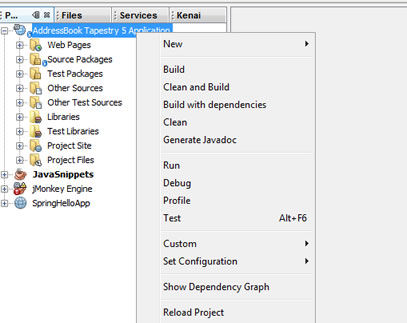

Right-click on our project and select either "Build" or "Clean and Build".

Wait for it to finish - you can track its progress in the output window if you want.

When finish go to the project folder and locate the target folder. Open it and there should be file named AddressBook.war. This is what we will install into Tomcat.

So, how do we deploy (or install) our application into Tomcat. There are two ways of doing this:

1. You can simply copy the AddressBook.war file into the webapps folder within the Tomcat path. Tomcat will detect it and deploy the new web application using the filename as context. So in our case it will be deployed to /addressbook relative to the URL.

2. or use the Tomcat manager to deploy it.

Now this is roughly half the job. The other half is about setting up the mySQL database and configuring Apache. If you have gotten this far, you could do that already.

So, from start to finish - a working Tapestry5 application. I hope you find this useful and inspire you to do great and wonderfull things with Tapestry.

Wednesday, March 3, 2010

Nip/Tuck (not the show)

I call this part Nip/Tuck (not the show) because now we are going to make this thing look good. It will be in two parts.

We are going to add some javascript to make it look good and use a CSS framework. When I say look good is we are going to add effects that so popular with Web2.0 websites like slide, fade and curl. For this to happen we are going to use JQuery (and probably JQueryUI) and maybe 960.gs for our CSS framework.

I know that Tapestry ships with Prototype but *whine on* I don't like prototype *whine off*. I know I might get flamed for this but guess what, my project, my stuff, go away.

Let's start with JQuery....

Now, it absolutely makes no sense in recreating the wheel on how to add JQuery into our Tapestry project. With that, we are going use somebody's else's wheel: ioko + maven.

Ioko-tapestry-commons' project, a series of GPL licensed components to assist in building tapestry websites and the easiest way to use them is to add them is by using maven (or other build systems) dependencies. Remember, we are only interested in the JQuery lib. So, power up your Netbeans6.8 and open up your pom.xml and we simply add ioko as a project dependency. Refer to the ioko-tapestry-commons website if you get lost, somehow.

Just look for the dependencies section of the pom.xml and add these 5 line. That's right five lines!

 <dependency>  
   <groupId>uk.co.ioko</groupId>  
   <artifactId>tapestry-jquery<artifactId>  
   <version>1.5.0-jquery-1.3.2</version>  
  </dependency>  

The module builds on the tapestry-javascript stack support and automatically includes jQuery in your pages. It automatically calls jQuery.noConflict() so be aware that you will need to write any jQuery code using the 'jQuery' or map it to another short hand form to avoid conflicts with Scriptaculous.

Run with it and have fun with JQuery.

Sunday, January 24, 2010

Getting that layout just right

Getting that layout just right or more like changing the layout into something else I like. That's right, changing the look of our web application. Now, since this is tutorial - we are not going to reinvent the wheel. So, no wires, drafts, sketches or whatever remotely artistic. We go the cowards way and look for a cop out. So drop that pad and pen (or pencil) and open you're browser and point it to freecsstemplates.org or oswd.org. We are going to pick one out and use it. so browse, pick and download a design.


For me I am using a fixed-width design with two-columns from freecsstemplates.org. Its called Republic.

Now, you should be able to read html and some css for this part. When you have figured out how the republic template works, you know its time to use it and replace ours.

So, we open up Tapestry's Layout component. Almost everything in Tapestry is a component. The Layout component comes in two parts - the Layout.tml (just like you see in the pic) and the Layout.java (which is the java class). Layout.java (if haven't figured it out) is in the source packages.

Now we are going to do a simple find and replace for this part, but not everything. For example:

 <div class="post">  
   <div class="title">  
      <h2>${title}</h2>  
   </div>  
    <div class="entry">  
      <t:body/>  
    </div>  
 </div>  

If you see tags like a ${title} and the <t:body/>, you should be aware that these are page variables that Tapestry will replace. So you will have to work around them to get the look you want. It should be fairly clear that anything with a "$" or "t:" prefix is connected to something in our Tapestry application.

That should be easy.

After recoding the html, now you need to replace the css. Now within the Web pages there should be a Layout.css file in a (duh) layout folder. Open that and then open (use notepad) layout.css of the republic template. Copy and paste over. Don't forget about the image folder. And BAM! you got a new look.

BTW, you might need to clean the cache of your web browser and/or application server (assuming that you're using something else other than jetty *big grin*)


This is how it should look now after a few minutes of playing around with the HTML and CSS. Don't worry if you don't like it - you could always change how the thing looks quite easily.

Remember, if you want to get your grubby hands on the code you need to learn how to use SVN. Again, this tutorial project is hosted by kenai.com at this URL: http://kenai.com/projects/addressbook-tap.

Hoots!